 WP开发教程 WordPress导师在线教程


三类文件的区别:
.pot File (Portable Object Template)
What it is: This is the master template file that contains all the original translatable strings from your theme or plugin.
Purpose: It serves as the starting point for creating translations. Think of it as a blueprint or skeleton.
Content: Contains the original English text (or whatever the default language is) but NO translations.
Who creates it: The theme/plugin developer generates this file.
Can you edit it?: You shouldn’t edit this file for translations. It’s meant to remain as the original template.
.mo File (Machine Object)
What it is: This is the compiled, binary version of the .po file.
Purpose: WordPress actually reads this file to display translations on your site. It’s optimized for machine reading.
Content: Same information as the .po file, but in a format computers can read quickly.
Who creates it: Generated automatically from the .po file using tools like Poedit or Loco Translate.
Can you edit it?: NO! This is a binary file—you cannot open or edit it manually. You must edit the .po file and then regenerate the .mo file.
Naming convention: Same as .po file but with .mo extension (e.g., mytheme-fr_FR.mo)
Quick Comparison Table
| File Type | Human Readable? | Edit for Translation? | Required for WordPress? |
|---|---|---|---|
| .pot | Yes | No (it’s a template) | No |
| .po | Yes | YES – Edit this! | No (but needed to create .mo) |
| .mo | No (binary) | No | YES – WordPress reads this |
Which File Should You Edit for Manual Translation?
Answer: Edit the .po file
Here’s the workflow:
- Start with: .pot file (the template)
- Edit: .po file (your translation work happens here)
- Generate: .mo file (compiled version for WordPress to use)
- Upload: Both .po and .mo files to your server
How to Manually Edit a .po File
Method 1: Using a Text Editor (Basic Approach)
You can edit .po files with any text editor (Notepad++, Sublime Text, VS Code, etc.).
Step-by-step process:
- Create your .po file from the .pot template:
- Copy the .pot file
- Rename it following this format:
themename-language_code.po - For example:
twentytwentyfour-de_DE.pofor German
- Open the .po file in your text editor
- Understand the structure:
# Translation comment (optional)
#: file-reference.php:123
msgid "Original English text"
msgstr "Your translation here"- Fill in the translations:
- Find each
msgidline (this is the original text) - Add your translation in the corresponding
msgstrline - Keep the quotation marks
- Find each
Example:
msgid "Submit"
msgstr "Soumettre"

msgid "Search for:"
msgstr "Rechercher :"

msgid "%s comments"
msgstr "%s commentaires"- Important rules:
- Keep placeholders like %s, %d exactly as they appear
- Preserve HTML tags if they exist
- Keep escape characters like \n (newline) or ” (quote)
- Don’t change the
msgidlines, only themsgstrlines
- Save the file with UTF-8 encoding (very important!)
- Generate the .mo file:
- You cannot create .mo files manually
- Use Poedit (free) or an online converter
- Or use Loco Translate plugin in WordPress
Method 2: Using Poedit (Recommended)
This is easier and automatically generates the .mo file:
- Open Poedit
- Click “Create New Translation”
- Select your .pot file
- Choose your target language
- Edit translations in the interface
- Save (automatically creates both .po and .mo files)
Method 3: Using Loco Translate Plugin
- Install Loco Translate in WordPress
- Navigate to the theme’s translation section
- Edit directly in the web interface
- Save (automatically handles both .po and .mo files)
File Header Information
When you open a .po file, you’ll see a header at the top:
"Project-Id-Version: Theme Name\n"
"POT-Creation-Date: 2025-01-07 12:00+0000\n"
"PO-Revision-Date: 2025-01-07 15:30+0000\n"
"Last-Translator: Your Name <your@email.com>\n"
"Language-Team: French\n"
"Language: fr_FR\n"
"MIME-Version: 1.0\n"
"Content-Type: text/plain; charset=UTF-8\n"
"Content-Transfer-Encoding: 8bit\n"
You should update this information with your details, especially:
- Last-Translator
- Language
- PO-Revision-Date
Common Language Codes
- English (US): en_US
- French (France): fr_FR
- Spanish (Spain): es_ES
- German: de_DE
- Italian: it_IT
- Portuguese (Brazil): pt_BR
- Chinese (Simplified): zh_CN
- Japanese: ja
- Russian: ru_RU
- Arabic: ar
Why You Need Both .po and .mo Files
The .po file:
- Human-readable and editable
- Can be version controlled (Git)
- Can be sent to translators
- Serves as your backup
The .mo file:
- Machine-optimized and fast to read
- Required for WordPress to display translations
- Must be regenerated every time you update the .po file
Think of it this way: .po is your working document, .mo is the final product that WordPress uses.
Summary
If you want to manually translate:
- Edit the .po file (human-readable text file)
- Generate the .mo file from your edited .po file (using Poedit, Loco Translate, or online tools)
- Upload both files to your theme’s
/languages/folder - Never edit the .pot file (it’s just a template) or the .mo file (it’s binary)
The .po file is your translation workspace, while the .mo file is what WordPress actually uses to display your translations on the website.
要让poedit工作,首先要确保textdomain跟style.css的一样
更新poedit设置
找到菜单栏翻译,属性,找到源路径,填你的主题的路径,然后在源关键词那里,一行一行填下面的翻译函数:
__
_e
_x:1,2c
_ex:1,2c
_n:1,2
_nx:1,2,4c
_n_noop:1,2
_nx_noop:1,2,3c
esc_html__
esc_html_e
esc_html_x:1,2c
esc_attr__
esc_attr_e
esc_attr_x:1,2c
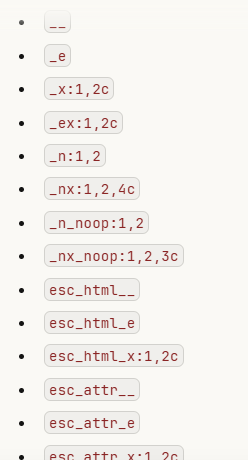
选择OK然后选择从源文件更新从代码更新
记住选择新文件翻译之后每次都要输入源关键词的翻译函数,一行行输入
然后用chatgpt翻译po文件:
I have this .pot file content. Please convert it into a valid WordPress .po file for [Target Language]. Keep the msgid as is, and fill the msgstr with the translation. Ensure all %s and %d placeholders remain identical.
